<< Return to the Members page.
If you do know your password and you just want to log in to the Members Portal you can do so at this link.
Unsure what your Password is? Start your Password Reset here.
These instructions assume that:
- You are already a member of Edinburgh u3a - if not you can join us here.
- And that you are already registered on the Members Portal - if not you can do this here.
- And that you have forgotten your Members Portal password and wish to reset it.
Click on this link to reach the following screen (the link opens in a new tab).
- Do not fill in the email box.
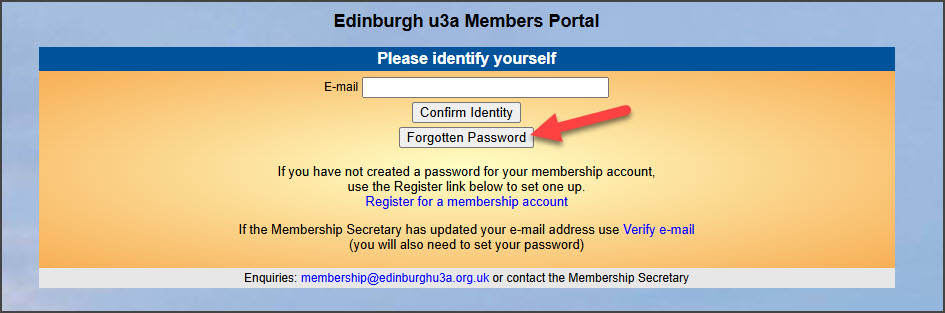
- Click on the "Forgotten Password" button.
This will take you to the “Reset or change password” screen.
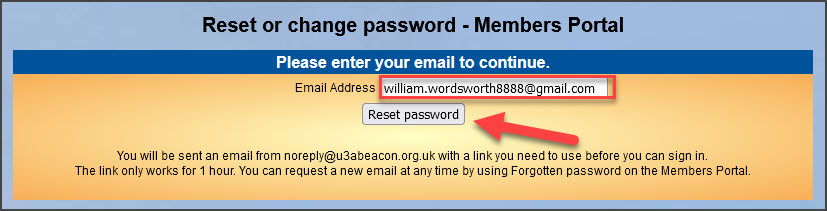
- Fill in your email address and press the "Reset Password" button.
- Look in your email program for email with title "Edinburgh u3a Beacon password reset".
- If the email doesn't arrive within a few minutes, check your Spam folder.
- The confirmation email will expire after 1 hour.
- If you do not use the link in the password reset email within 1 hour you will have to repeat this process.
Confirming your email address in the Password Reset email.
Open the password reset email in your email program and click on the link next to the text “To reset your password, please use this link:”
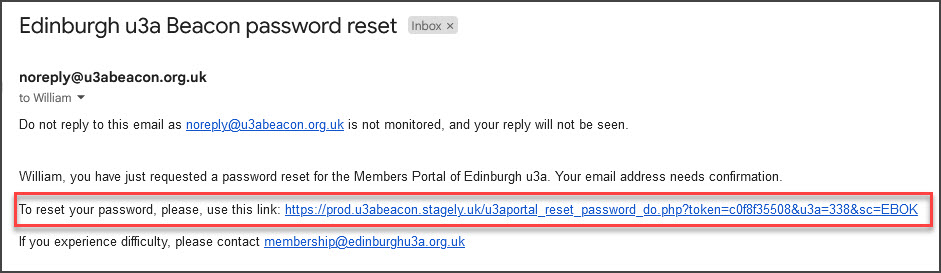
Email address has been verified.
When you click on the confirmation link in the Password Reset email, the following page will open where you can enter a new password.
- Your new password must have at least 10 characters
- Your new password must have at least 1 upper case, 1 lower case & 1 numeric character.
- You may optionally consider using the following special characters ! @ # $ % ^ & *
- It is a good idea to click on the eye symbol in the password box, to display the password text that you are entering.
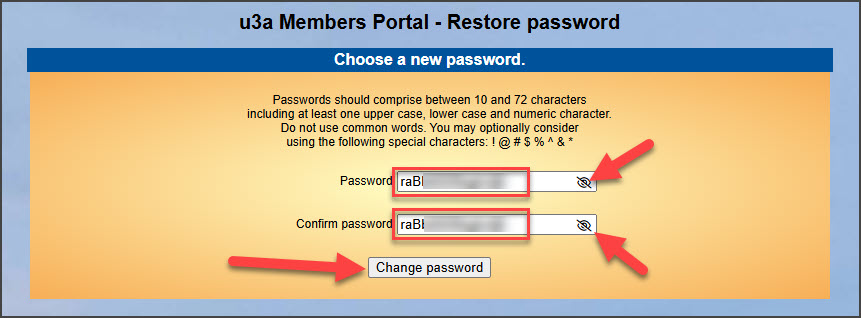
- Next, click on the "Change password" button.
Your password has been updated.
When you click on the “Change Password” button, the green text on the next screen will confirm that your password has been updated.
You can now start to log in by entering your email address:
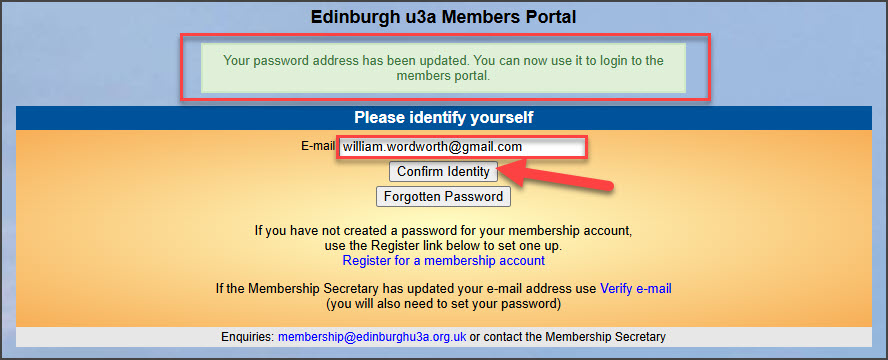
- Press the “Confirm Identity” button.
- You are now asked for your password.
- Again, it is a good idea to click on the eye symbol in the password box, to display the password text that you are entering.
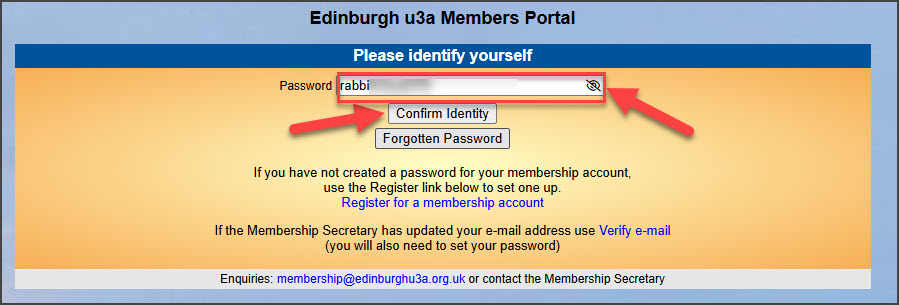
- Press the “Confirm Identity” button to log in.

You have now completed your Password Reset
You may now want to review & update your details on the Members Portal - details are here.