<< Return to the Members page.
If you have already registered (you do not need to do it again) and you just want to log in to the Members Portal you can do so at this link.
Register on the Members Portal.
These instructions assume that:
- You are already a member of Edinburgh u3a - if not you can join us here.
- And that you are NOT already registered on the Members Portal
- If you have registered previously you do not need to do it again.
- If you are already registered you may want to update your personal details as explained at this link.
You will need the following membership information, which you should have received in your registration email:
- Membership number
- Forename
- Surname
- Postcode
- E-mail address
Registering yourself on the members portal.
- Use this link to reach the registration web page (the link opens in a new tab).

- Type in your Membership number, Forename, Surname, Post code and email address.
- The details entered must exactly match those listed in your registration email.
- Do not enter any spaces at the end of the text.
- A space in the middle of the postcode is acceptable.
- Finally, press the “Confirm Identity” button.
Registration details are not correct.
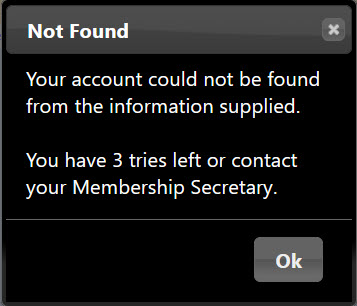
You will see this error message if you enter one or more pieces of information incorrectly.
- Press “Ok” and carefully check each piece of information in your registration email.
- Repeat the above steps to enter the 5 pieces of information.
Registration details are correct.
You must now enter a new password in two text boxes :
- Your new password must have at least 10 characters
- Your new password must have at least 1 upper case, 1 lower case & 1 numeric character.
- You may optionally consider using the following special characters ! @ # $ % ^ & *
- It is a good idea to click on the eye symbol in the password box, to display the password text that you are entering.
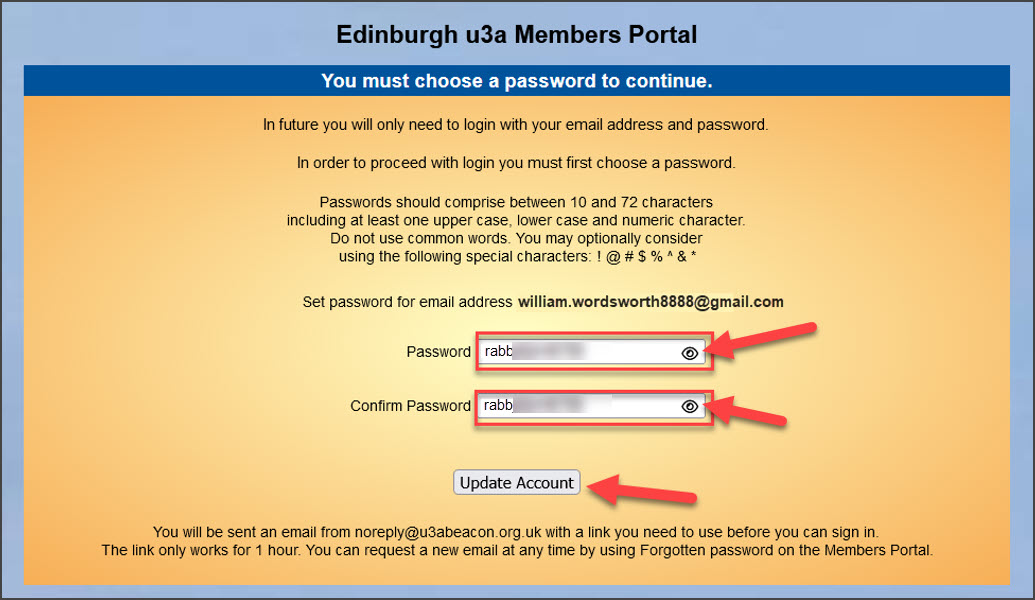
- Press the “Update Account” button after you have entered your new password in both fields.
New Password is set - Now confirm your email address .
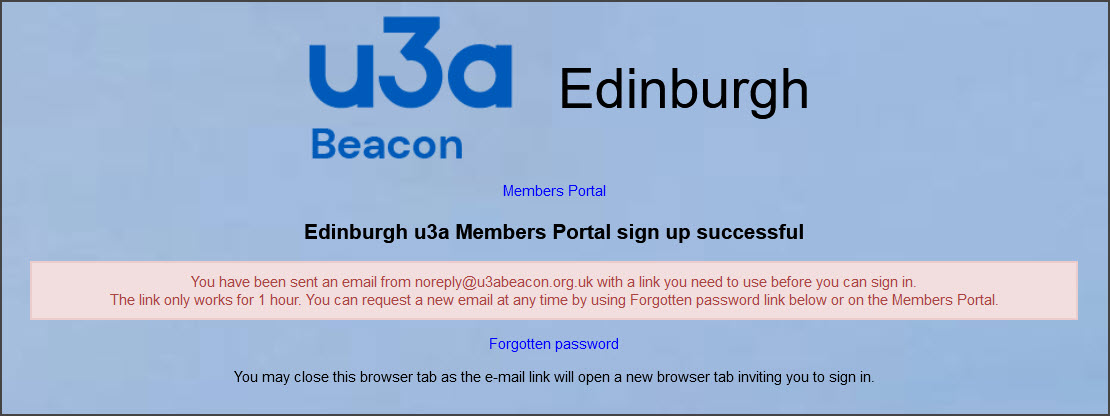
You have successfully registered on the portal with a new password.
- Remember to take note of your new password.
- The final step is to confirm your email address - this screen informs you that a confirmation email has been sent to you.
Finding your password confirmation email.
Open your email program and look for a new email with subject “Edinburgh u3a Beacon password confirmation”.
- If the email doesn't arrive within a few minutes, check your Spam folder.
- The confirmation email will expire after 1 hour.
- The Forgotten Password feature described at this link can be used to request a new confirmation email if you fail to confirm your email address within the 1 hour time period.
Confirming your email address in the Password Confirmation email
Open the confirmation email in your email program and click on the link next to the text “Please confirm using this link:”
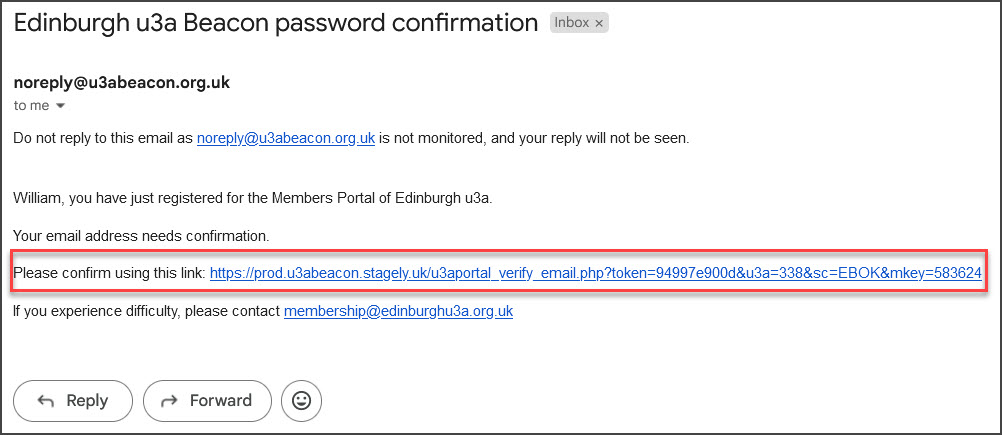
Example of the Confirmation Email text.
Email address has been verified.
When you click on the confirmation link in the Password Confirmation email, a page will open confirming that your email has been verified.

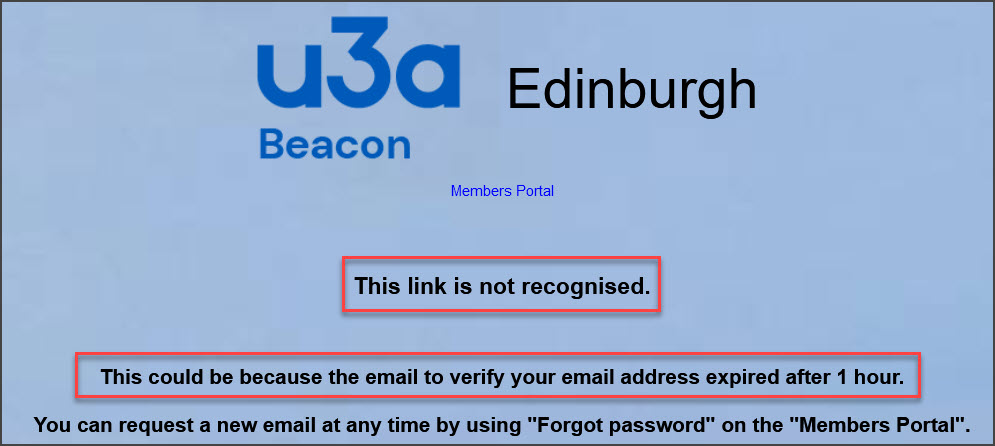
Email address has not been verified.
If, when you click on the link in the confirmation email, you are notified that your email address has not been verified, you can reset your password using the Forgotten Password feature which is explained at this link.

You have now completed Registration & new password set up.
Your next step will be to review & update your details on the Members Portal - details are at this link.